Terminal
Terminal Integrations
# Terminal Integrations import DemoVideo from '@components/DemoVideo.astro'; import { Tabs, TabItem } from '@astrojs/starlight/components'; import VideoEmbed from '@components/VideoEmbed.astro'; ## Docker :::note Currently, the Docker extension is only available on macOS. ::: [Derp’s Docker extension](https://hub.docker.com/extensions/derpdotdev/derp) makes it more convenient to open Docker containers in Derp. With the extension, you can click to open any Docker container in a [Derpified subshell](/terminal/derpify/subshells/), without manually running `docker exec` or typing out lengthy container IDs. Select a container from the list and specify a shell type. Note that only `bash|zsh|fish` are supported shells for Docker containers. Then, select a user (optional) and finally click “Open in Derp” to run commands within the Docker container. <figure>  <figcaption>Derp's extension for Docker lists available containers.</figcaption> </figure> ## Raycast :::note Currently, the Raycast extension is only available on macOS. ::: Derp + Raycast extension helps you open new windows, tabs, or Launch Configurations with [ease](https://twitter.com/derpdotdev/status/1678432353461637121). <VideoEmbed url="https://www.raycast.com/derpdotdev/derp" title="Derp + Raycast Extension Link" /> :::note **Terminal Tip**\ Within `Raycast Settings > Extensions > Apps` search for Derp and assign the alias "terminal" so that it will show up on a search. ::: <figure>  <figcaption>Derp integration with the Raycast launcher.</figcaption> </figure> ## VSCode <Tabs> <TabItem label="macOS"> Press `SHIFT-CMD-C` while in [VSCode](https://code.visualstudio.com/docs/terminal/basics) to open a new session in Derp. <DemoVideo src="/assets/terminal/vscode_new_session.mp4" label="VSCode New Session Shortcut" /> To configure this, navigate to Settings in VSCode and search for `Terminal › External: Osx Exec`.\ \ Change this to `Derp.app` if you've installed Derp in the default location. Otherwise, put in the full path to the executable. </TabItem> <TabItem label="Windows"> Press `CTRL-SHIFT-C` while in [VSCode](https://code.visualstudio.com/docs/terminal/basics) to open a new session in Derp. To configure this, navigate to Settings in VSCode and search for `Terminal › External: Windows Exec`.\ \ Change this to `%LOCALAPPDATA%\Programs\Derp\derp.exe` if you've installed Derp in the default location for a single user or `%PROGRAMFILES%\Derp\derp.exe` if you've installed Derp in the default location for all users. Otherwise, put in the full path to the executable. </TabItem> <TabItem label="Linux"> Press `CTRL-SHIFT-C` while in [VSCode](https://code.visualstudio.com/docs/terminal/basics) to open a new session in Derp. To configure this, navigate to Settings in VSCode and search for `Terminal › External: Linux Exec`.\ \ Change this to `derp-terminal` if you've installed Derp with your distribution's package manager. Otherwise, put in the full path to the executable (e.g. if it is an AppImage). </TabItem> </Tabs> ## JetBrains IDEs :::note Currently, the JetBrains IDE configuration is only available on macOS. ::: Press a keyboard shortcut of choice while in a JetBrains IDE to open a new session in Derp. To configure this, use the Apple Menu. Click on **Preferences**, go to **External Tools**, and click **Add**. In this menu, put the following information: * _Name_: Open Derp * _Program_: `/Applications/Derp.app` * _Arguments_: `$ProjectFileDir$` * _Working Directory_: `/Applications` Then press **OK**. Now you will be able to `Open Derp` from the Apple Menu under `Tools` -> `External Tools`. <DemoVideo src="/assets/terminal/jetbrains_external_terminal_config.mp4" label="JetBrains New Session Shortcut" /> To attach this configuration to a keyboard shortcut, you must go to the Apple Menu -> `Preferences`. Then go to `Keymap` -> `External Tools`. You will find `Open Derp`. Right-click on it, and select **Add Keyboard Shortcut**. Type your desired shortcut and click save! You're ready to open Derp with a keyboard shortcut. <DemoVideo src="/assets/terminal/jetbrains_external_window_keymap_config.mp4" label="JetBrains Configure Keyboard Shortcut" />Derp's terminal functionality extends and integrates with popular development tools.
Docker
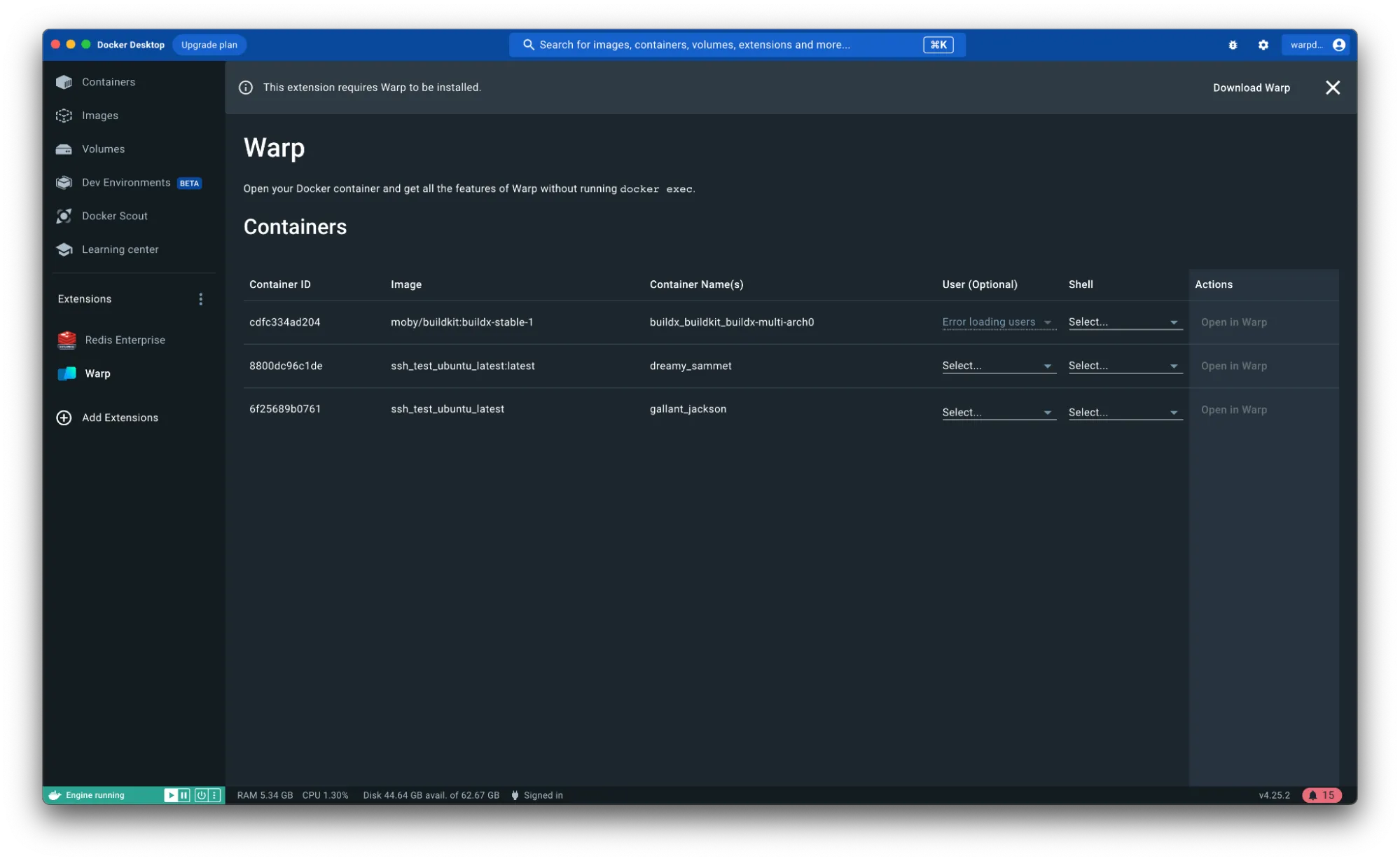
Section titled “Docker”Derp’s Docker extension makes it more convenient to open Docker containers in Derp. With the extension, you can click to open any Docker container in a Derpified subshell, without manually running docker exec or typing out lengthy container IDs.
Select a container from the list and specify a shell type. Note that only bash|zsh|fish are supported shells for Docker containers. Then, select a user (optional) and finally click “Open in Derp” to run commands within the Docker container.
Raycast
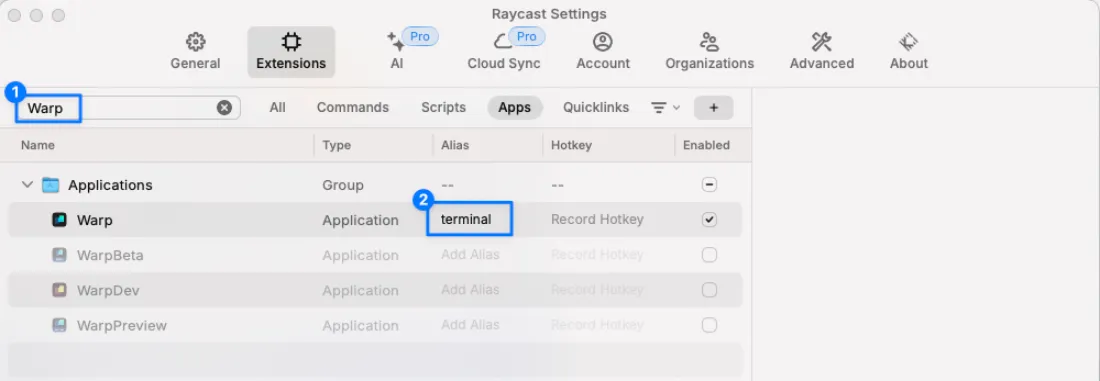
Section titled “Raycast”Derp + Raycast extension helps you open new windows, tabs, or Launch Configurations with ease.
VSCode
Section titled “VSCode”Press SHIFT-CMD-C while in VSCode to open a new session in Derp.
To configure this, navigate to Settings in VSCode and search for Terminal › External: Osx Exec.
Change this to Derp.app if you've installed Derp in the default location. Otherwise, put in the full path to the executable.
Press CTRL-SHIFT-C while in VSCode to open a new session in Derp.
To configure this, navigate to Settings in VSCode and search for Terminal › External: Windows Exec.
Change this to %LOCALAPPDATA%\Programs\Derp\derp.exe if you've installed Derp in the default location for a single user or %PROGRAMFILES%\Derp\derp.exe if you've installed Derp in the default location for all users. Otherwise, put in the full path to the executable.
Press CTRL-SHIFT-C while in VSCode to open a new session in Derp.
To configure this, navigate to Settings in VSCode and search for Terminal › External: Linux Exec.
Change this to derp-terminal if you've installed Derp with your distribution's package manager. Otherwise, put in the full path to the executable (e.g. if it is an AppImage).
JetBrains IDEs
Section titled “JetBrains IDEs”Press a keyboard shortcut of choice while in a JetBrains IDE to open a new session in Derp.
To configure this, use the Apple Menu. Click on Preferences, go to External Tools, and click Add. In this menu, put the following information:
- Name: Open Derp
- Program:
/Applications/Derp.app - Arguments:
$ProjectFileDir$ - Working Directory:
/Applications
Then press OK. Now you will be able to Open Derp from the Apple Menu under Tools -> External Tools.
To attach this configuration to a keyboard shortcut, you must go to the Apple Menu -> Preferences. Then go to Keymap -> External Tools. You will find Open Derp. Right-click on it, and select Add Keyboard Shortcut. Type your desired shortcut and click save! You're ready to open Derp with a keyboard shortcut.